Simple. Safe. Modern.
Start using NFON’s Cloud Telephony AppSuite today and manage your cloud telephony settings easier.
Ncontrol will reach End of Life and will be decommissioned on 28 August 2026.
Going forward, our NFON Cloud Telephony (Cloudya) AppSuite will become the central interface for managing your individual telephony extension settings.
More possibilities with the Cloud Telephony AppSuite.
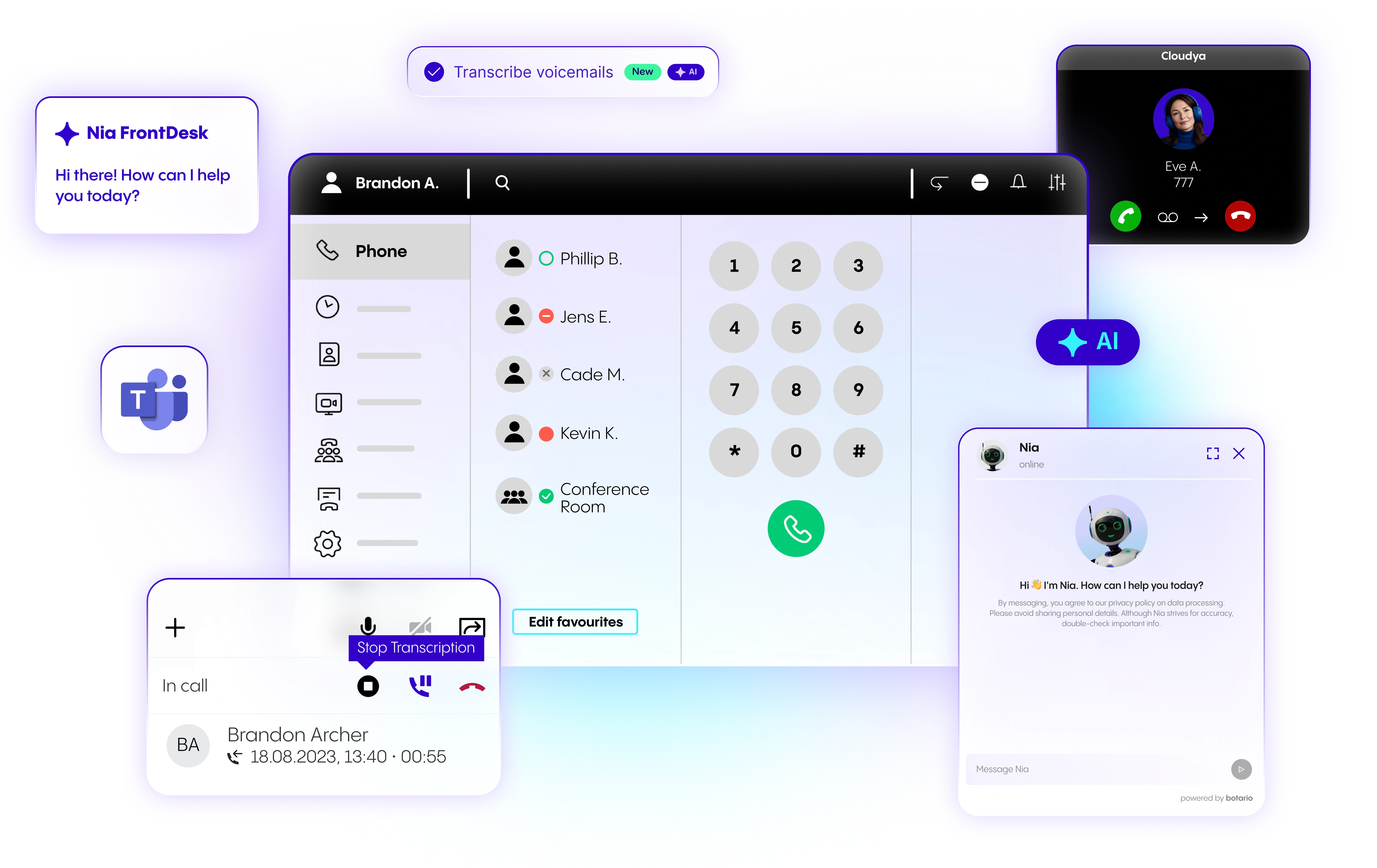
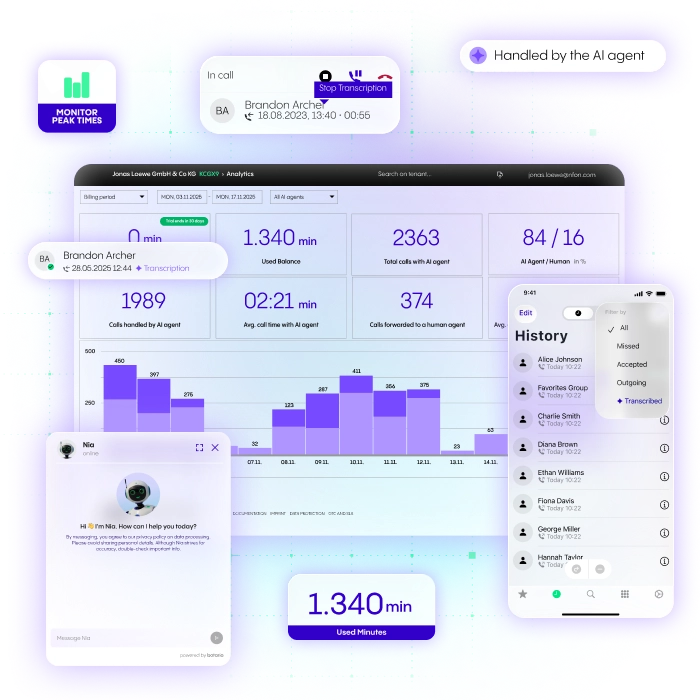
The NFON Cloud Telephony AppSuite offers a modern, secure, and intuitive environment where you can easily manage features such as call forwarding, extension settings, and queue profiles, while benefiting from continuous improvements and innovations.
Take advantage of the Cloud Telephony AppSuite today and create your user account as soon as possible.
On this page, you will learn:
How the Cloud Telephony AppSuite offers an enhanced user experience.
How the transition timeline looks like and what you can expect.
How to create your user account and get started with the Cloud Telephony AppSuite.
:format(webp))
Start today!
Enjoy an enhanced cloud telephony experience.
The NFON Cloud Telephony AppSuite provides a modern, cloud-based environment where you can easily manage your individual phone settings through an intuitive interface.
With the NFON Cloud Telephony AppSuite, you benefit from:
A modern user interface for easy telephony management.
A simplified user experience for managing extension settings.
Not only the web app, but also the desktop app with optimized support for Windows and macOS, as well as mobile apps for iOS and Android.
Continuous improvements and innovations within the NFON Cloud Platform.
A secure and future-proof environment.
Create your user account for the NFON Cloud Telephony AppSuite directly in Ncontrol. Learn how to in the dedicated section below.
Key Ncontrol features also available in the Cloud Telephony AppSuite.
Many of the features currently used in Ncontrol are also available in the Cloud Telephony AppSuite, including:
Call forwarding configuration
The ability to use the WebApp to initiate calls either with a desk phone or with Business Premium and similar contract types, directly within the app
Sending and receiving faxes
Queue profiles – available in the Admin Portal and the Cloud Telephony WebApp
Caller ID display (CLIP / CLIR) - the configuration of the phone number display will remain available, but it will be managed by administrators through the Admin Portal
Features that will not be carried over
The features currently available in Ncontrol that will not be available in the Cloud Telephony AppSuite are:
Linked Extension - the ability to temporarily take over another extension will not be carried over due to low usage amongst existing Ncontrol users.
Graphical Busy Lamp Field (BLF) configuration will no longer be available. Function keys can still be configured in the Cloud Telephony WebApp, but without the graphical phone layout.
Transition timeline and what’s happening next.
The transition from Ncontrol will take place in three phases:
Phase 1 - 29 April 2026 to 29 July 2026
Ncontrol fully usable, you can create your access to Cloud Telephony AppSuite in Ncontrol
As an Ncontrol user, you can create your access to the Cloud Telephony AppSuite directly within Ncontrol (see instructions below). Ncontrol remains fully functional during this process.
Phase 2 - 29 July 2026 to 28 August 2026
Ncontrol limited, you can only create access to Cloud Telephony AppSuite in Ncontrol
Ncontrol users can still create their Cloud Telephony AppSuite user in Ncontrol (see instructions below), however, the features of Ncontrol will no longer be available.
Phase 3 - 28 August 2026
Ncontrol decommissioned
Ncontrol will be permanently shut down. If you haven't created a cloud telephony user by then, an administrator can still create one for you and assign it to your extension.
How to register for the Cloud Telephony AppSuite.
Getting started with the Cloud Telephony AppSuite is simple.
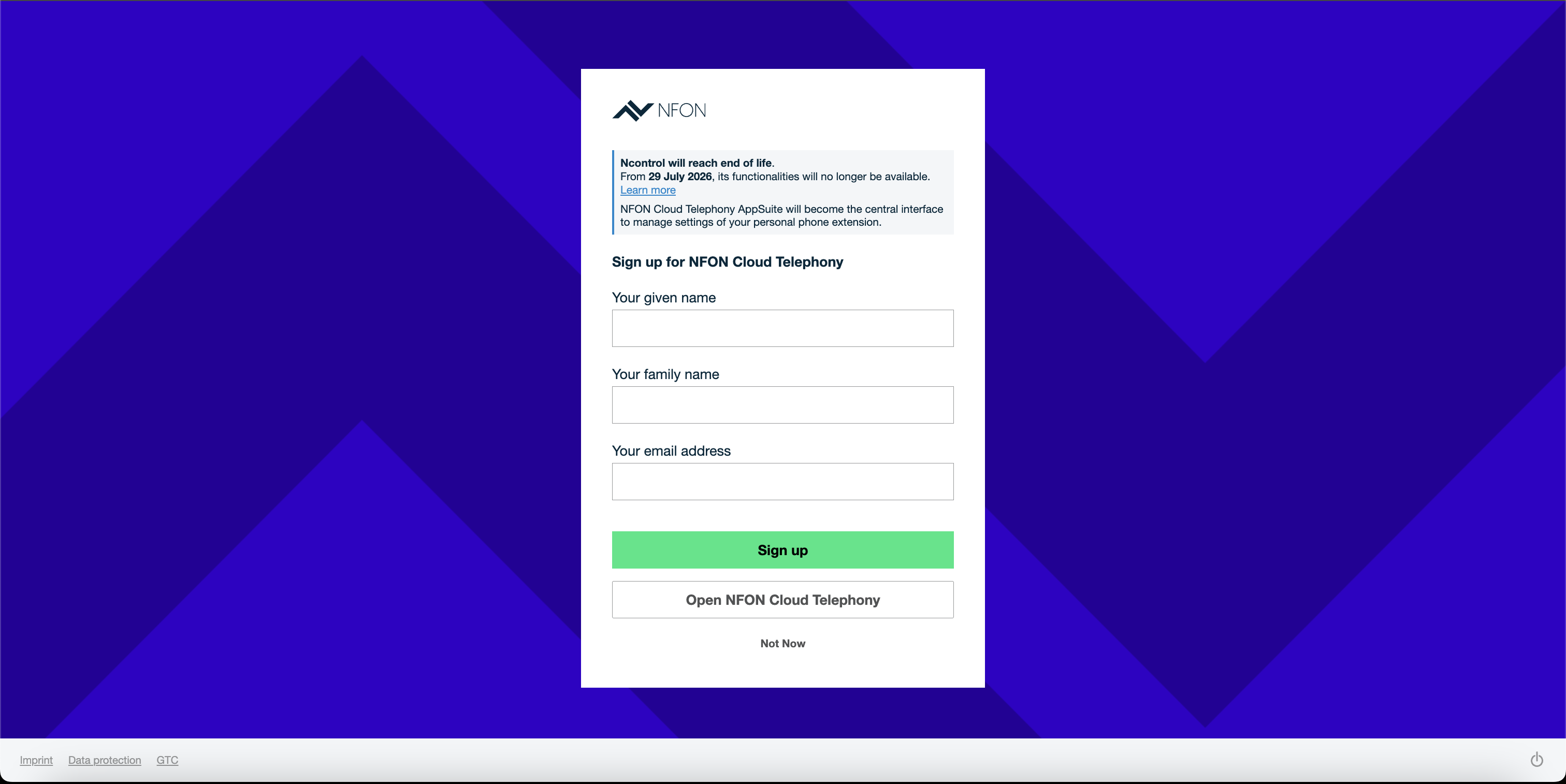
During Phase 1
Step 1: Open Ncontrol and login with your usual credentials.
Step 2: A registration pop-up will appear with information about the end-of-life date and the option to create your user account for the Cloud Telephony AppSuite with your name and email address.
Step 3. You can skip this step and continue using Ncontrol with all its features.
Step 4: After creating your account, you will receive a confirmation email. Click the confirmation link and then log in to https://start.cloudya.com with your email address and password.
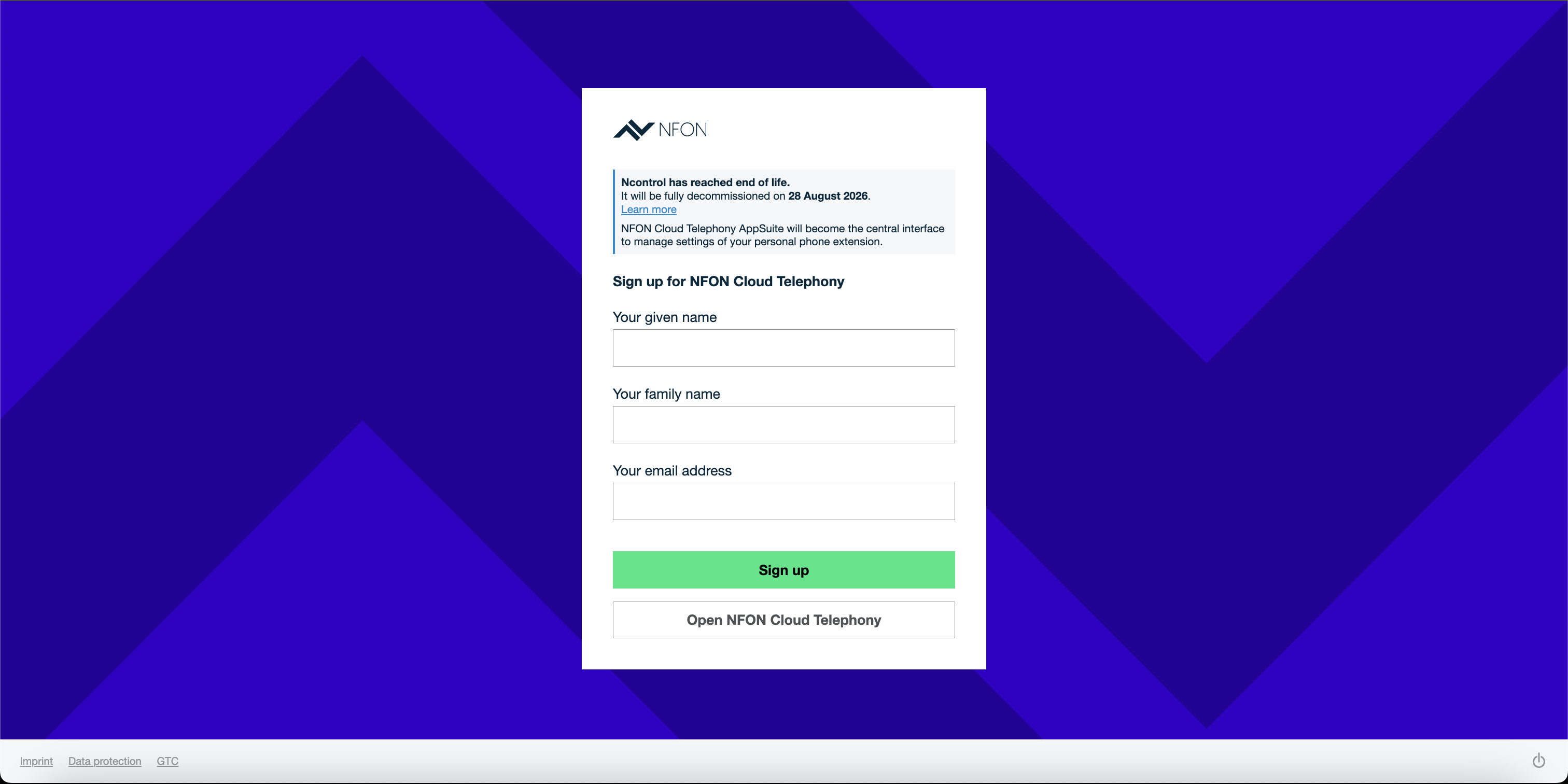
During Phase 2
Step 1: Open Ncontrol and login with your usual credentials.
Step 2: The registration screen pop-up will appear with information on the EOL date and the option to create your user to the Cloud Telephony AppSuite with your name and email address
Step 3. In this phase you no longer have the option to skip Step 2 (Create user) and Ncontrol functionalities are no longer available. You must register for access to Cloud Telephony AppSuite with your name and email address.
Step 4: After you create the user, you will receive an email confirmation – please click on the confirmation button in the email and then proceed to authenticate in the Cloud Telephony AppSuite at https://start.cloudya.com with your email and password.
After Phase 3
After Ncontrol is decommissioned, you will no longer be able to create a user yourself. Please contact your cloud telephony administrator to obtain a user account for your extension.
We recommend creating your account as soon as possible and using the Cloud Telephony AppSuite before Ncontrol is shut down.
Frequently asked questions
Below is a list of frequently asked questions:
How can I access the Cloud Telephony AppSuite ?
During Phase 1 and Phase 2, Ncontrol users can create their user access directly in Ncontrol via email registration and then login at https://start.cloudya.com with their email and password.
Where will telephony settings be managed after Ncontrol is decommissioned?
Administration is handled via the Cloud Telephony AppSuite. Instructions for the web app can be found here and for the desktop app here.
You can also view the Cloud Telephony demo here.
How will extensions be managed? Currently using Ncontrol and Linked Extensions for this.
Administration is handled via the Admin Portal. The "Linked Extension" feature is no longer available. Learn how to use the Admin Portal here.
What happens for users that absolutely want a graphical display of the function keys on the phone?
Function keys can be configured in the Cloud Telephony AppSuite, however the graphical display of the function keys on the phone will not be carried over.
. I do not yet have a Cloud Telephony AppSuite enabled contract. What happens now?
Since December 9, 2025, all contract types can generally use the Cloud Telephony AppSuite. Ncontrol users simply need to create a user account following the steps described above or contact their administrator.
:format(webp))
Reach out to us!
We are happy to answer any questions you may have. You can also read the documentation for the NFON Cloud Telephony AppSuite or ask Nia!